The Ultimate Guide to Instagram Horizontal Post Sizes
Instagram horizontal post size is 1080 × 566 pixels with an aspect ratio of 1.91:1. This is the optimal dimension for landscape-oriented content on Instagram’s feed.
| Instagram Horizontal Post Specifications | Details |
|---|---|
| Recommended dimensions | 1080 × 566 pixels |
| Aspect ratio | 1.91:1 |
| Minimum width | 320 pixels |
| Maximum width | 1080 pixels |
| Displayed size in feed | Approximately 600 × 400 pixels |
| Supported file formats | JPEG, PNG for images; MP4, MOV for videos |
| Maximum aspect ratio allowed | Up to 16:9 (though 1.91:1 is recommended) |
Ever uploaded a stunning landscape photo to Instagram only to find it awkwardly cropped or displaying with annoying black bars? You’re not alone. With over 2 billion monthly active users sharing visual content, getting your horizontal posts to look just right has become both an art and a science.
While Instagram began as a square-only platform in 2012, it has evolved significantly. Today, landscape posts offer a perfect format for wide-angle shots, group photos, and cinematic content—if you know the right dimensions.
What many creators don’t realize is that landscape posts take up less vertical feed space, making them easier to scroll past compared to portrait posts. This means your horizontal content needs to be especially compelling to stop the scroll.
According to recent data, square and portrait posts tend to receive more engagement than landscape posts, as they occupy more screen real estate. However, landscape format remains essential for specific visual storytelling needs where width matters more than height.
Ready to master the landscape format? This guide will show you exactly how to optimize your horizontal posts for maximum impact in 2026.
Must-know Instagram horizontal post size terms:
– instagram aspect ratio
– instagram image size
– photo sizes
Instagram Horizontal Post Size Cheat Sheet & Orientation Comparison
When it comes to Instagram, size really does matter. Understanding how different orientations appear in the feed can dramatically impact your content strategy and engagement rates. Let’s break down how horizontal posts compare to other formats:
| Format | Dimensions | Aspect Ratio | Feed Real Estate | Best For |
|---|---|---|---|---|
| Horizontal | 1080 × 566 px | 1.91:1 | Least vertical space | Panoramas, group photos, cinematic scenes |
| Square | 1080 × 1080 px | 1:1 | Medium vertical space | Symmetrical compositions, product shots |
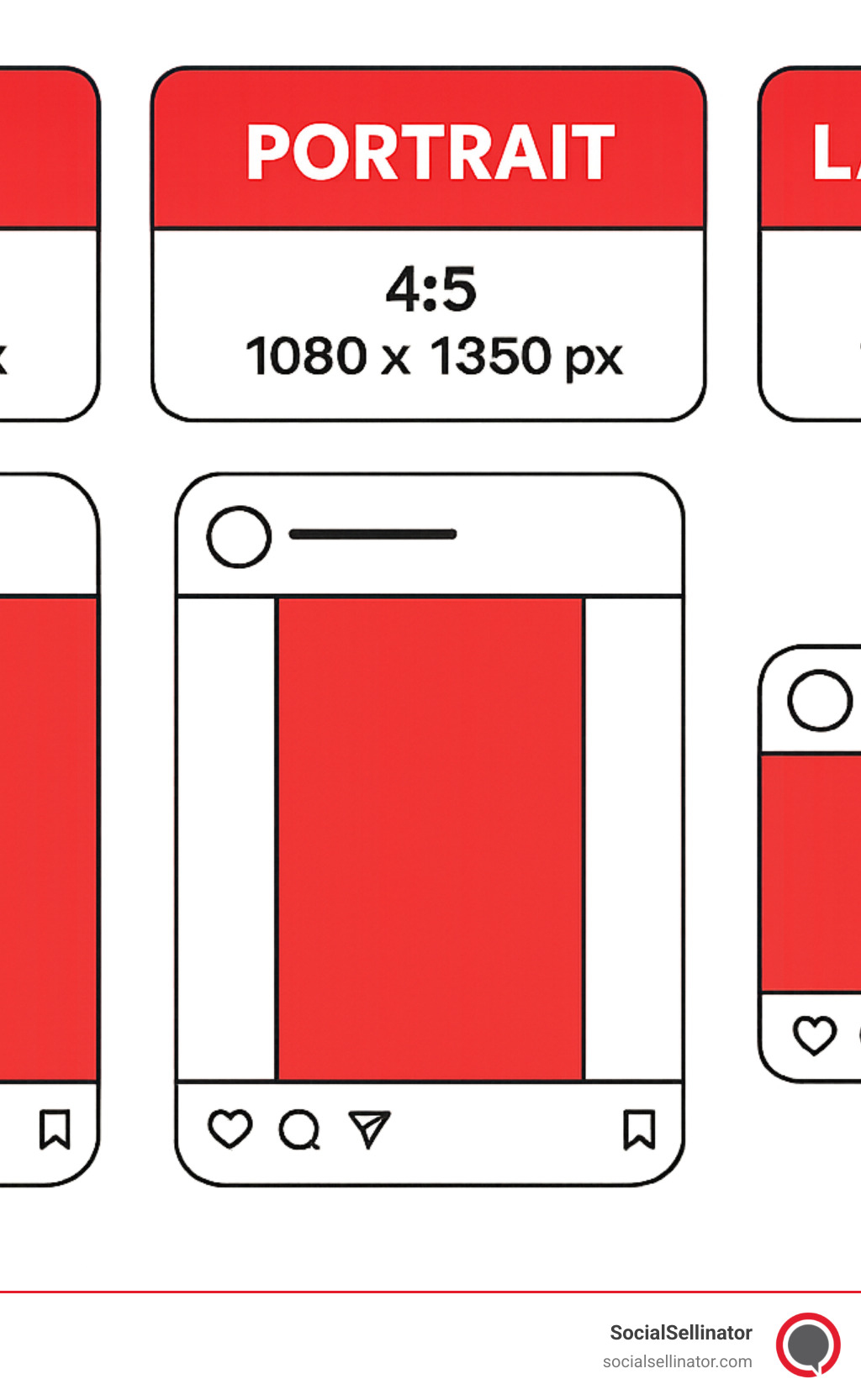
| Portrait | 1080 × 1350 px | 4:5 | Most vertical space | People, tall objects, detailed shots |

The Instagram horizontal post size offers a unique canvas with its own set of advantages and challenges. Think of it as the widescreen format of Instagram – perfect for certain stories but requiring a bit more creativity to grab attention.
Why? Because landscape posts take up less vertical space in the feed, making them easier to scroll past. Your thumb naturally flicks through them faster than it does with taller portrait posts.
When your horizontal masterpiece appears in someone’s feed, Instagram compresses your 1080 × 566 px creation down to roughly 600 × 400 px on most devices. This matters if you’ve included text or intricate details that might become harder to see.
Here’s something many creators overlook: regardless of how you upload your content, everything appears as squares in your profile grid. Instagram automatically crops the sides of your horizontal images in grid view, so keeping important elements centered ensures they stay visible in both views.
Our analysis shows portrait posts (4:5) typically receive higher engagement simply because they dominate more screen real estate and force thumbs to pause longer. But don’t write off horizontal posts! They excel at showcasing panoramic vistas, group gatherings, and cinematic moments that just don’t work in other formats.
Want to dive deeper into aspect ratios? More info about Instagram Aspect Ratio
Exact Instagram Horizontal Post Size Specs
Let’s get specific about the exact requirements for Instagram horizontal post size in 2026:
The sweet spot for horizontal posts is 1080 × 566 pixels with a 1.91:1 aspect ratio. This is Instagram’s preferred landscape format, offering the cleanest display without any unwanted borders or cropping.
While Instagram will technically accept wider formats up to 16:9, you’ll end up with those annoying black bars at the top and bottom. Nobody wants those!
Size-wise, Instagram has some firm boundaries: nothing smaller than 320 pixels wide (though uploading that small will result in pixelation as Instagram stretches it), and nothing wider than 1080 pixels (Instagram will compress larger images anyway).
For file formats, stick with JPEG and PNG for images, while videos work best as MP4 or MOV files with H.264 encoding. Keep your image files under 30MB and videos under 3.6GB to avoid upload failures.
Instagram’s compression algorithms can sometimes be a bit harsh, especially on detailed images. For best results, upload at exactly 1080 pixels wide rather than letting Instagram handle the resizing. Your followers will thank you for the crisp, clear visuals!
Engagement Data: Landscape vs Portrait
Let’s talk real numbers about how post orientation affects your engagement:
Portrait posts are the engagement champions, typically generating 30-40% higher interaction rates than landscape posts. It’s simply a matter of physics – they take up more screen space and require more time to scroll past.
Square posts hold the middle ground, performing about 20% better than landscape formats in terms of likes, comments, and shares.
Landscape posts generally receive the lowest average engagement, but – and this is important – they can actually outperform other formats for specific content types.

Fascinating eye-tracking studies from Nielsen show that users naturally spend less time viewing landscape content in vertical scrolling environments like Instagram. Our eyes and thumbs are simply programmed to move more quickly past shorter content.
But landscape posts shine brilliantly for:
Cinematic storytelling where you want that film-like widescreen feel
Sweeping landscapes that need horizontal space to breathe
Group photos where fitting everyone in matters more than filling the screen
Product displays that are naturally wider than they are tall
Side-by-side comparisons like before-and-after changes
The secret to successful landscape posts isn’t fighting their natural disadvantages – it’s leaning into their strengths. Create content that demands the horizontal format, then make it impossible to scroll past with strong visual hooks, bold color contrasts, and dynamic elements that draw the eye.
Want to understand the science behind scrolling behavior? Check out Nielsen’s research on scrolling patterns.
Crafting Scroll-Stopping Landscape Posts
Let’s face it—landscape posts have a tougher time grabbing attention as users scroll through their Instagram feeds. Since they take up less vertical space, your horizontal content needs extra visual punch to make thumbs stop scrolling. But don’t worry! With the right approach, your landscape posts can become some of your most engaging content.

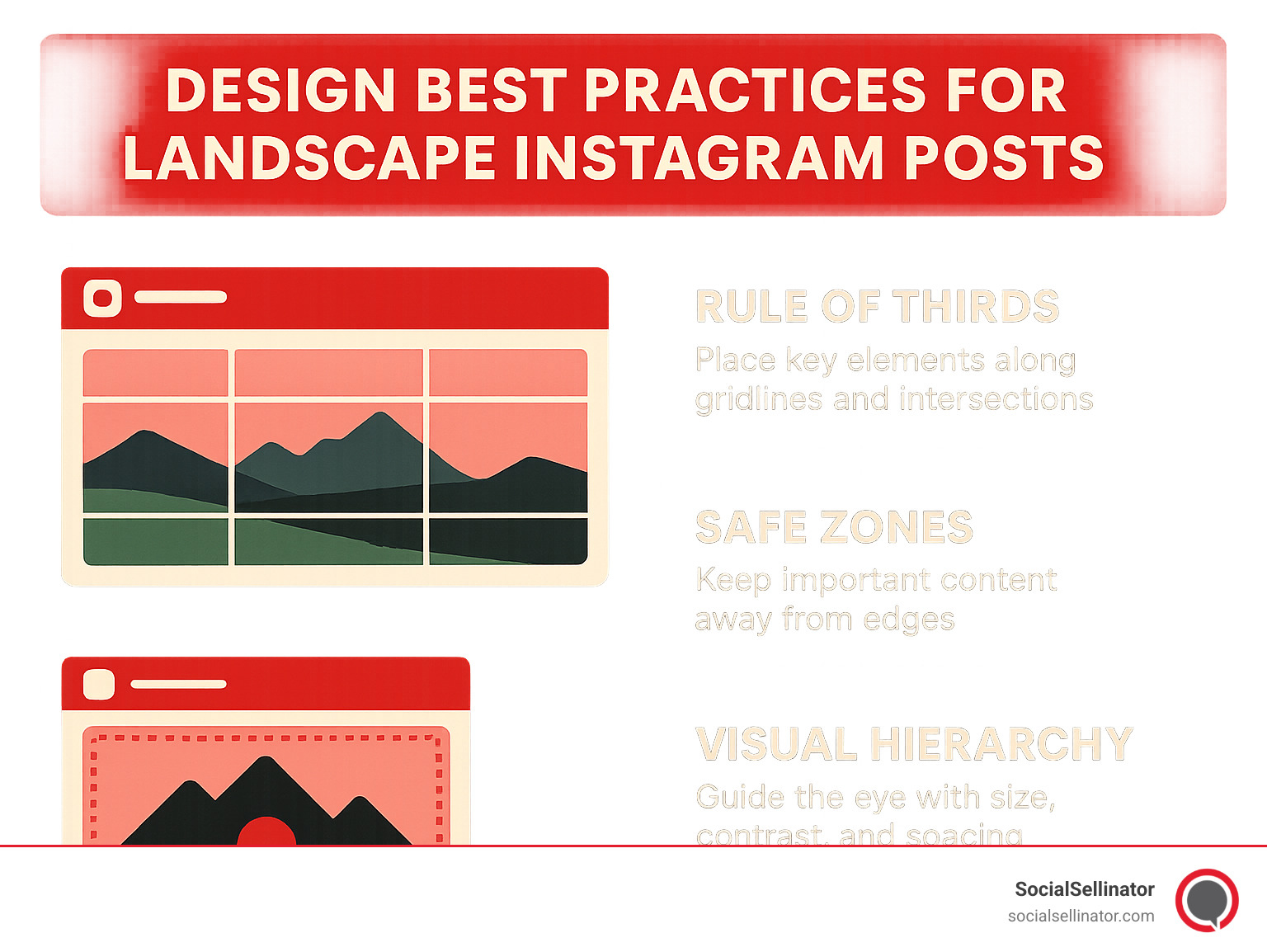
1. Leverage the Rule of Thirds
The 1.91:1 aspect ratio of Instagram horizontal post size practically begs for rule-of-thirds composition. Think of your image divided into a 3×3 grid, with four intersection points. Placing your main subjects at these points creates natural visual interest that draws the eye. For landscapes, try positioning the horizon along the top or bottom third line rather than dead center.
2. Create Depth with Layering
One of the best ways to make landscape posts more engaging is by creating a sense of depth. Include elements in the foreground (perhaps rocks or flowers), midground (your main subject), and background (mountains or sky). This three-dimensional approach pulls viewers into your image rather than letting them scroll past. It’s like creating a little world they want to step into!
3. Use Leading Lines
Horizontal formats are perfect for showcasing paths, roads, rivers, or fences that naturally draw the eye across the frame. These leading lines create visual movement that encourages viewers to linger longer on your post. Try positioning these lines to point toward your main subject for maximum impact.
4. Employ High-Contrast Elements
Since landscape posts occupy less vertical space, you need something that pops! High-contrast elements—whether it’s light against dark, complementary colors, or dramatic size differences—create immediate visual interest. A tiny person against a vast landscape or a bright red boat on blue water can work wonders for stopping the scroll.
5. Consider Safe Zones
Always keep your most important elements (faces, text, logos) away from the edges of your horizontal posts. Not only might Instagram crop these areas in certain views, but compression artifacts often appear around the borders. Think of the outer 10% of your image as a “danger zone” for critical content.
6. Maintain Brand Consistency
Your landscape posts should still feel like “you.” Use consistent color treatments, filters, or compositional approaches that align with your overall Instagram aesthetic. This consistency helps strengthen brand recognition, even when you switch between different post orientations. Your followers should instantly recognize your content as they scroll.
7. Design for Both Feed and Grid
Your beautiful landscape masterpiece will appear in two different contexts: horizontally in the feed and as a center-cropped square in your profile grid. Position key elements centrally so they remain visible in both views. Always preview how your grid will look before posting—sometimes a fantastic landscape shot looks confusing when cropped to a square.
More info about Instagram Marketing Tips
Shooting & Editing Workflow
Creating stunning landscape posts starts long before you hit “share.” Here’s how to nail the entire process from capture to upload:
When shooting, give yourself some breathing room by capturing wider than you need. Whether you’re using a smartphone or DSLR, this extra space provides flexibility during editing. For professional-quality landscape photos, consider shooting during golden hour (the hour after sunrise or before sunset) when light is soft and directional.
During editing, focus on color correction and contrast before worrying about dimensions. The sRGB color space works best for Instagram, as it’s designed for digital displays. When you’re ready to crop, aim for exactly 1080 × 566 pixels—the perfect Instagram horizontal post size. Apply a touch of sharpening as your final step to counteract Instagram’s compression algorithms.
For videos, 30 frames per second hits the sweet spot for Instagram. Keep your bitrate between 3-8 Mbps depending on how much motion your video contains (higher for action shots, lower for static scenes). Clean audio makes a huge difference, so aim for AAC codec at 128 kbps or higher.
Finding the right tools can streamline your workflow considerably. Adobe Lightroom offers professional-grade control for photographers, while Canva provides user-friendly templates with pre-set Instagram dimensions. For on-the-go editing, apps like Instasize, Snapseed, and VSCO make it easy to crop precisely to Instagram’s preferred ratios.
Visual Hooks That Work in 1.91:1
The horizontal format shines with certain types of content. Here are ideas that naturally leverage the strengths of landscape orientation:
Panoramic Landscapes showcase the sweeping grandeur of nature, from mountain ranges to ocean horizons. The wide format lets viewers feel the expansiveness of the scene in a way square or portrait posts simply can’t match.
Group Shots become much more natural in landscape format. No more cramming everyone together or taking awkward vertical group photos where people look tiny. The horizontal space lets everyone spread out comfortably.
Product Spreads allow you to display multiple items side-by-side, perfect for showing off a product line or collection. This works beautifully for everything from cosmetics to clothing to food.
Before-After Reveals placed side-by-side create powerful visual stories without requiring users to swipe. Whether it’s a room renovation, fitness change, or makeup application, seeing the comparison in one frame makes a stronger impact.
Cinematic Scenes with movie-like framing bring a professional, storytelling quality to your feed. The 1.91:1 ratio is close to what we’re used to seeing in films, giving your content a premium feel.
The horizontal format also excels for infographics, split-screen storytelling, environmental portraits, action sequences, and text overlays. By choosing content that naturally fits the wide format, you’ll turn the landscape orientation from a challenge into a strength.
Uploading Without Cropping: Quality, Carousels & Ads
Ever felt that sinking feeling when your perfect landscape photo gets awkwardly cropped on Instagram? You’re not alone. Let’s solve this problem once and for all with some practical tips to preserve your Instagram horizontal post size exactly as you intended.
The Upload Process
Uploading horizontal images without unwanted cropping is simpler than you might think. Start by opening Instagram and tapping that familiar “+” button to create a new post. When you select your carefully crafted horizontal image, don’t panic if it initially appears as a square – just look for the expand arrows icon (🔄) in the bottom-left corner and tap it to switch to full-size view.
Here’s where the magic happens: you can use pinch-to-zoom gestures to fine-tune your framing if needed. Once you’re happy with how everything looks, tap “Next” to continue with filters and captions. Voilà – horizontal post preserved in all its wide-angle glory!
Carousel Considerations
Carousel posts add an extra layer of complexity when working with horizontal images. The golden rule to remember is that the aspect ratio of your first slide dictates the format for all subsequent slides. This means if you lead with a 1.91:1 horizontal image, Instagram will automatically crop all other slides to match this ratio – whether they started as square, portrait, or another orientation.
For mixed content carousels, consider starting with a square image to give yourself maximum flexibility with the following slides. And remember, you can include up to 10 photos or videos in a single carousel, making this format perfect for storytelling that requires multiple scenes or perspectives.
Ad Specifications
When creating Instagram ads with horizontal images, the specifications differ slightly from organic posts. For feed ads, the recommended Instagram horizontal post size remains 1080 × 566 pixels (1.91:1), but Instagram also accepts 1200 × 628 pixels – the standard Facebook ad size. This flexibility can be handy if you’re repurposing content across platforms.
Story ads require a completely different approach, with 1080 × 1920 pixels (9:16) needed for proper full-screen display. For carousel ads, consistency is key – all images should share the same aspect ratio for a smooth viewing experience.
One critical but often overlooked detail: keep text overlays under 20% of the image area for optimal ad delivery. Facebook’s ad system tends to limit the reach of text-heavy images, so keep your copy concise and your visuals dominant.
File Size Limits
Instagram has specific file size boundaries you’ll need to work within. For images, you’re capped at 30 MB – generous enough for high-quality photos. Videos can be substantially larger at 3.6 GB maximum, while Stories top out at 4 GB. These limits are rarely an issue for most users, but they’re worth keeping in mind if you’re working with exceptionally high-resolution content or lengthy videos.
Accessibility Considerations
Making your horizontal posts accessible isn’t just considerate – it’s smart marketing that expands your reach. Take the extra moment to add alt text during the upload process by tapping “Advanced Settings” and then “Write Alt Text.” This simple step makes your content available to visually impaired users and can even provide SEO benefits.
Beyond alt text, ensure any text overlays have sufficient color contrast, avoid relying solely on color to convey meaning, and use your caption to describe important visual elements. These small efforts make a big difference in creating an inclusive Instagram presence.
More info about Instagram Promotion Tips
Avoid Cropping: Uploading at the Right Instagram Horizontal Post Size
The surest way to avoid unwanted cropping is to prepare your image with the exact Instagram horizontal post size before uploading. Start by cropping to 1080 × 566 pixels (that magical 1.91:1 aspect ratio) in your editing app of choice. When you open Instagram and tap the “+” icon, select your pre-formatted horizontal photo, then toggle to landscape mode using the format icon in the bottom-left corner.
Always take a moment to check your framing and preview how the center portion will appear in your profile grid, since Instagram displays all posts as squares in that view. You can also decide between a full-bleed presentation or adding borders for a more defined look before completing your upload with captions, location tags, and other details.
If you’re still experiencing cropping issues despite following these steps, try updating your Instagram app, uploading through the web version, or clearing your app cache if you’re on Android. Instagram strictly enforces its aspect ratio guidelines, so images that don’t conform will either be cropped or displayed with automatic borders.
Troubleshooting Compression & Blur
Nothing ruins a beautiful landscape photo faster than unexpected blurriness after upload. Instagram’s compression algorithms can sometimes be overzealous, but there are ways to minimize quality loss.
Always export your images at exactly 1080 pixels wide – not larger, not smaller. Avoid the temptation to re-edit JPEGs multiple times, as each save compounds compression artifacts. Instead, work from your original file whenever possible.
A professional trick is to apply slight strategic sharpening during your editing process to counteract Instagram’s inevitable softening. Be careful with noise reduction too – excessive smoothing can create an unnatural, plastic-looking image after Instagram applies its compression.
File format matters: PNGs maintain better quality for graphics and text but come with larger file sizes. For photos, a well-optimized JPEG under 1MB typically achieves the best balance between quality and compression. And never underestimate the impact of your internet connection – uploading over spotty Wi-Fi or weak cellular signals can trigger more aggressive compression.
If your horizontal posts consistently appear blurrier than expected, try uploading the same image through a different device, avoid Instagram’s built-in filters (which can reduce quality), or experiment with sl